
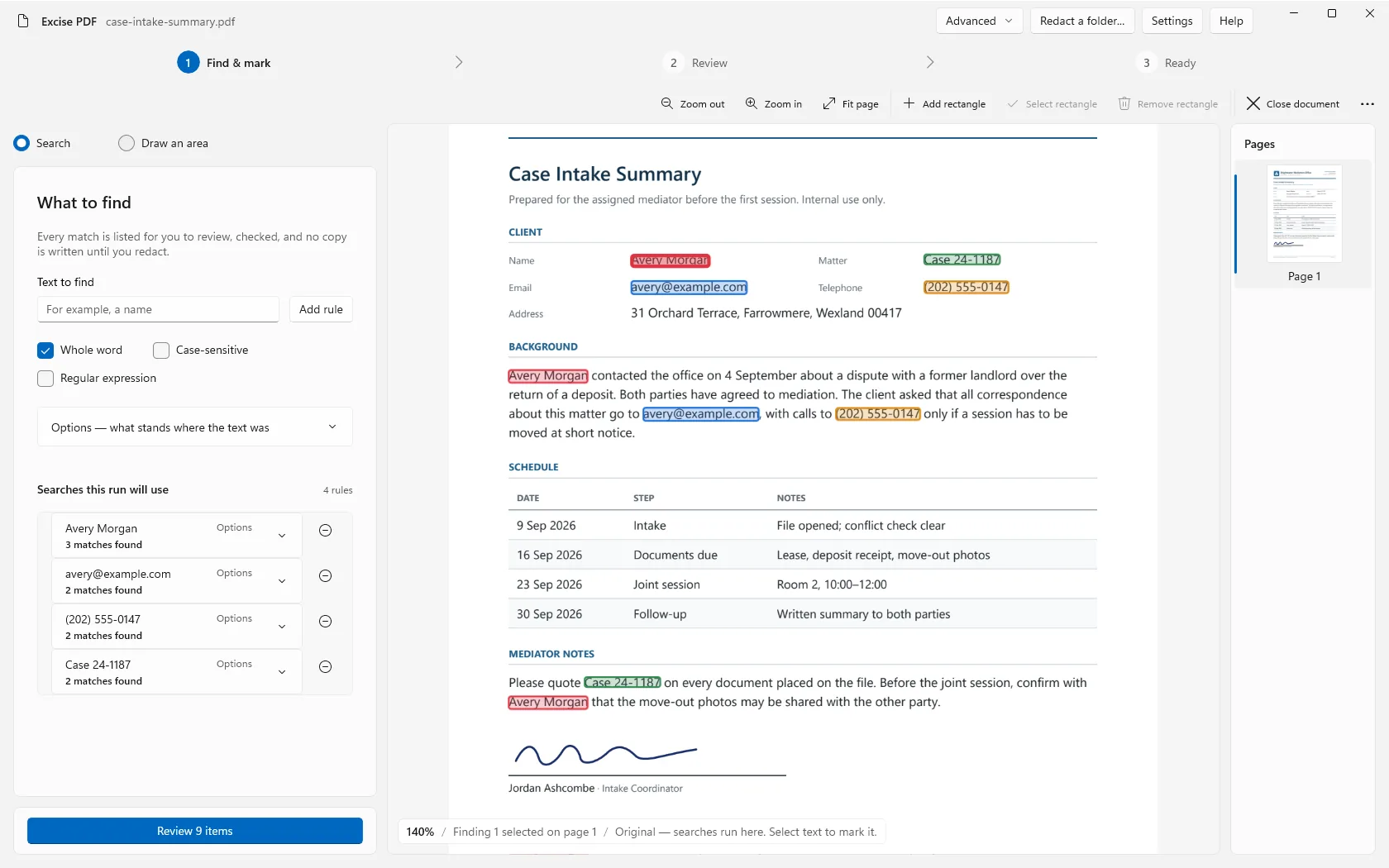
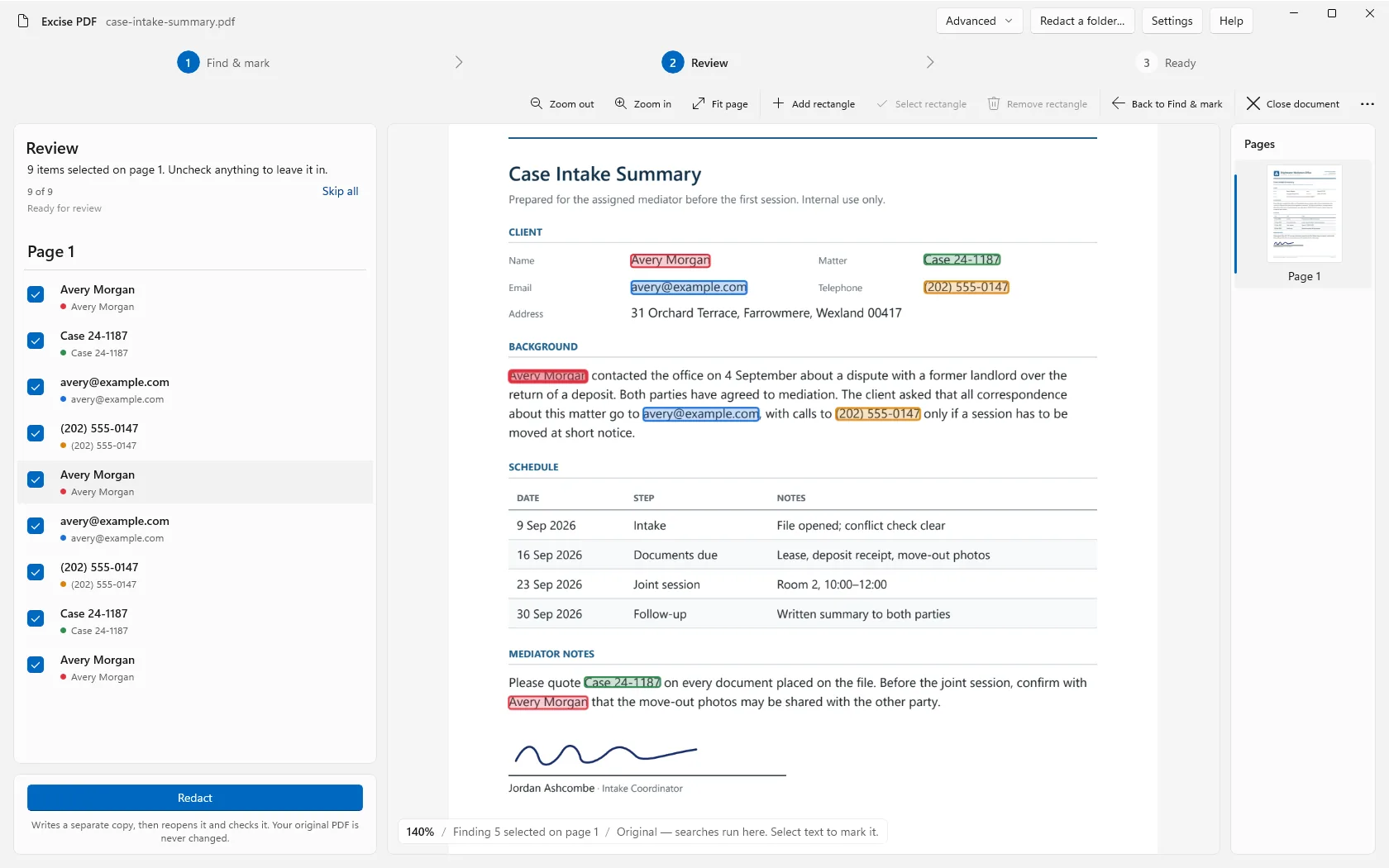
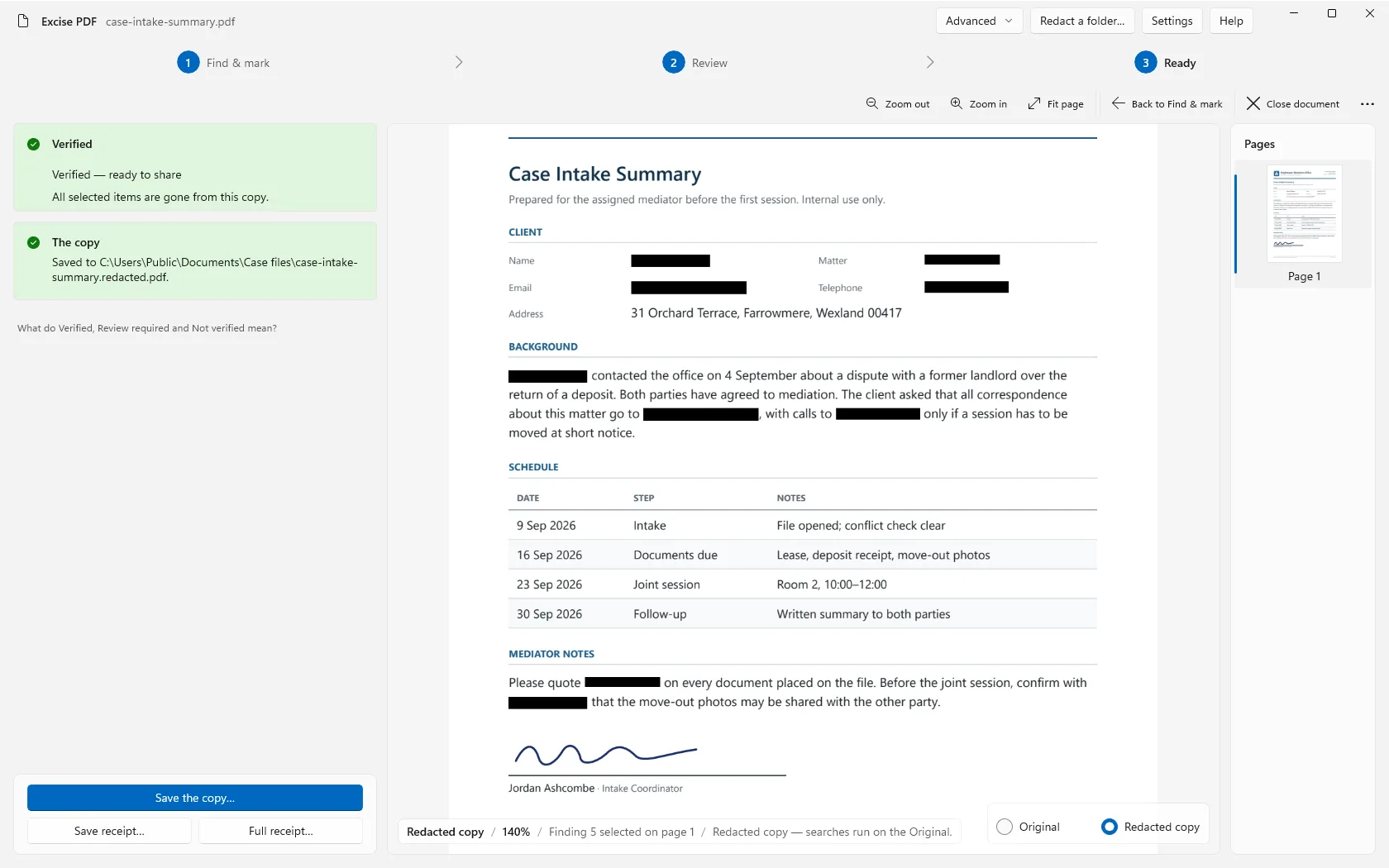
More than one thing to remove?
Add as many search criteria as the job needs. Combine names, phrases, numbers, and supported patterns, then review their matches together.
- Avery Morgan
- [email protected]
- (202) 555-0147
- Case 24-1187
Search and/or mark an area. Review what should go. Save a separate, checked copy. All on your Windows PC.
$9.99 to keep · no subscription · no account or card for the trial
Follow the same name, email, phone number, and case number from the search list to the saved copy.
Search for names, numbers, or phrases. Add another search whenever you need one, and/or mark an area on the page.
Review the matches from the same searches. Leave a match unchecked if it should stay, then run the redaction.
Excise PDF removes the selected content and reopens the copy. Read what the checks found, review the result, and save it. Your original is unchanged.
Actual Windows app captures · fictional sample document
Use either approach, or combine them in the same job.
Add as many search criteria as the job needs. Combine names, phrases, numbers, and supported patterns, then review their matches together.
Draw a rectangle around the area you want removed. A mark clears that place on that page; it does not search for similar content elsewhere.
By default, marking an area makes that page an image in the copy. The receipt explains what was checked.
How area marking works →Keep a search list for future PDFs, or run it across a folder. Folder runs apply the list without individual match review and give each input a result on the receipt.
Read about folder runs and limits →Your PDFs are processed on your device. No document upload and no app account. The direct installer offers an optional update check; it sends no document content.
Read the privacy policy →Excise PDF reopens the file it created and gives you a receipt. A Verified result applies to the checks named for that file and that run. It is not a blanket promise about everything in the document.
Understand the verification receipt →The named checks passed.
The receipt tells you what needs a look.
The receipt names what did not pass.
Use the full app for seven days. The clock starts at your first redaction, not when you download it.
A Windows purchase includes 12 months of updates. Keep using the versions you receive permanently.
Get the app free from Microsoft Store. After the seven-day trial, buy a $9.99 licence here on our website to keep saving redacted copies. No subscription.
Windows manages updates for the Store version. Licence purchases use our website checkout, not Microsoft Store billing.
Prefer an installer, or don't have Microsoft Store? Download directly (.exe) →
Windows SmartScreen or your browser may warn that the installer is unfamiliar or unsigned. That warning alone does not establish whether a file is safe. Only proceed if you trust this source and have checked the published SHA-256.
The direct installer is not code-signed, so the publisher appears as Unknown. Check the exact file against the published SHA-256 below.
16326514823ada517894f7a60a066a90be524acc256efff983630094c1ecb95f
Download checksum file
Not right for you? Ask within 30 days for a full refund. Terms & refund policy →